When creating multiple invitation links at once, you can optionally set a sync length. This is a fixed number of days that Fitabase will pull data from each participant's device, starting from the moment their account is connected to the platform.
1Navigate to the Create Multiple Links page
From your project's Invitations page, click Create Multiple Links.
2Enter your participant identifiers
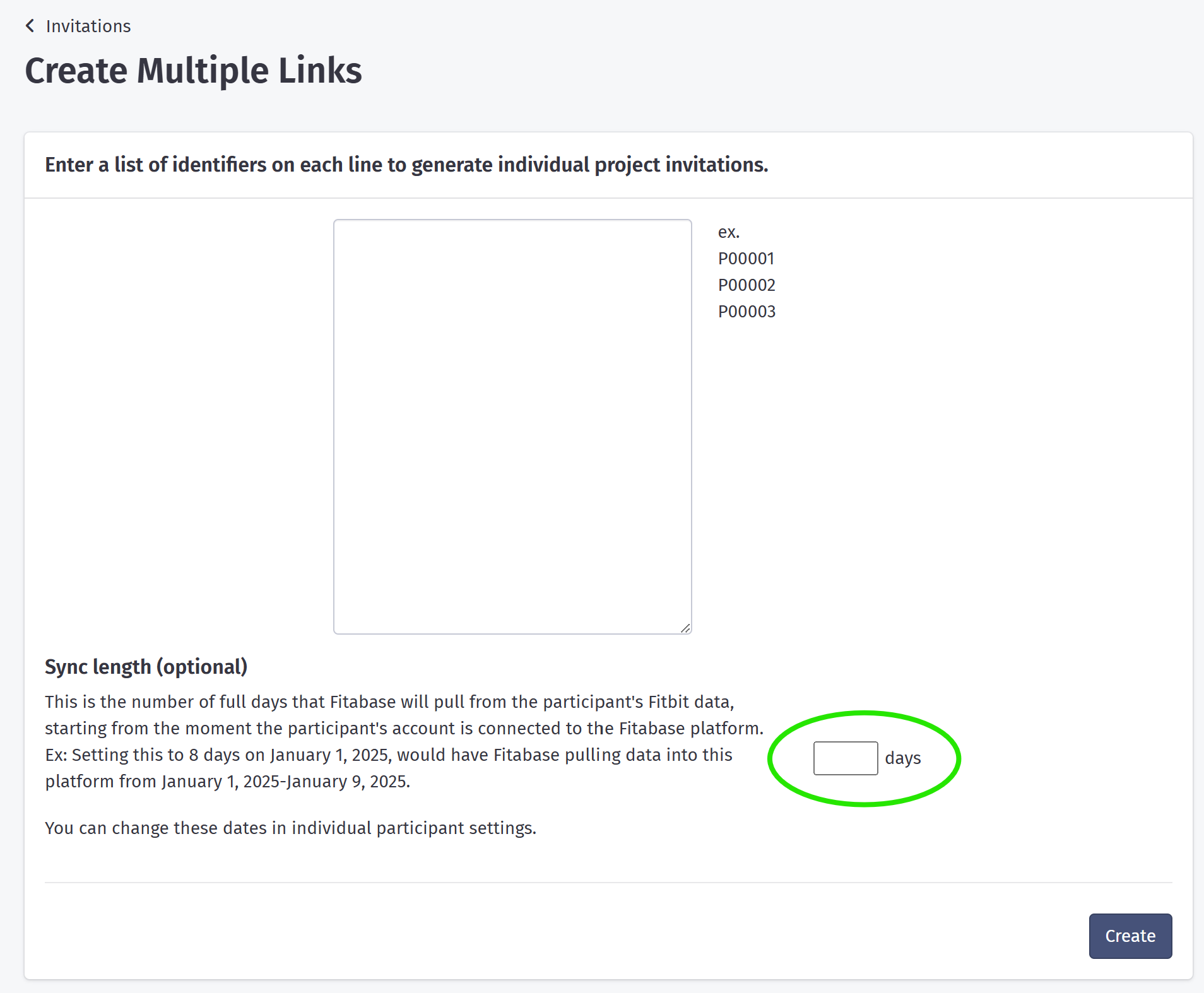
In the large text area, enter one participant ID per line (e.g., P00001, P00002, P00003). Each ID will receive its own unique invitation link.
3Set the Sync Length
Below the participant ID list, you will see the Sync length (optional) section.
- In the number input field, enter the number of full days you want Fitabase to collect data for each participant. For example, if you enter 8 and a participant connects their account on January 1, 2025, Fitabase will pull data from January 1 through January 9, 2025 (8 full days).
- Leave the field blank if you do not want to set a sync length.
Tip:
Sync length is applied from the moment each participant's account is connected — not from when the link is created. You can adjust an individual participant's sync dates later in their participant settings.
Create
Click Create to generate the invitation links.
Warning:
Sync length applies to all links created in the same batch. If participants in the batch need different sync lengths, create them in separate batches or adjust individual participant settings after creation.